 Millworker
Help / Features
 Edge Profile
Part
Round-over, chamfer, cove, ogee and your own profiles along edges, with a profile editor.
Set up
- A part with a top, shelf or door whose edges get a profile.
- Click Edge Profile (Features panel).
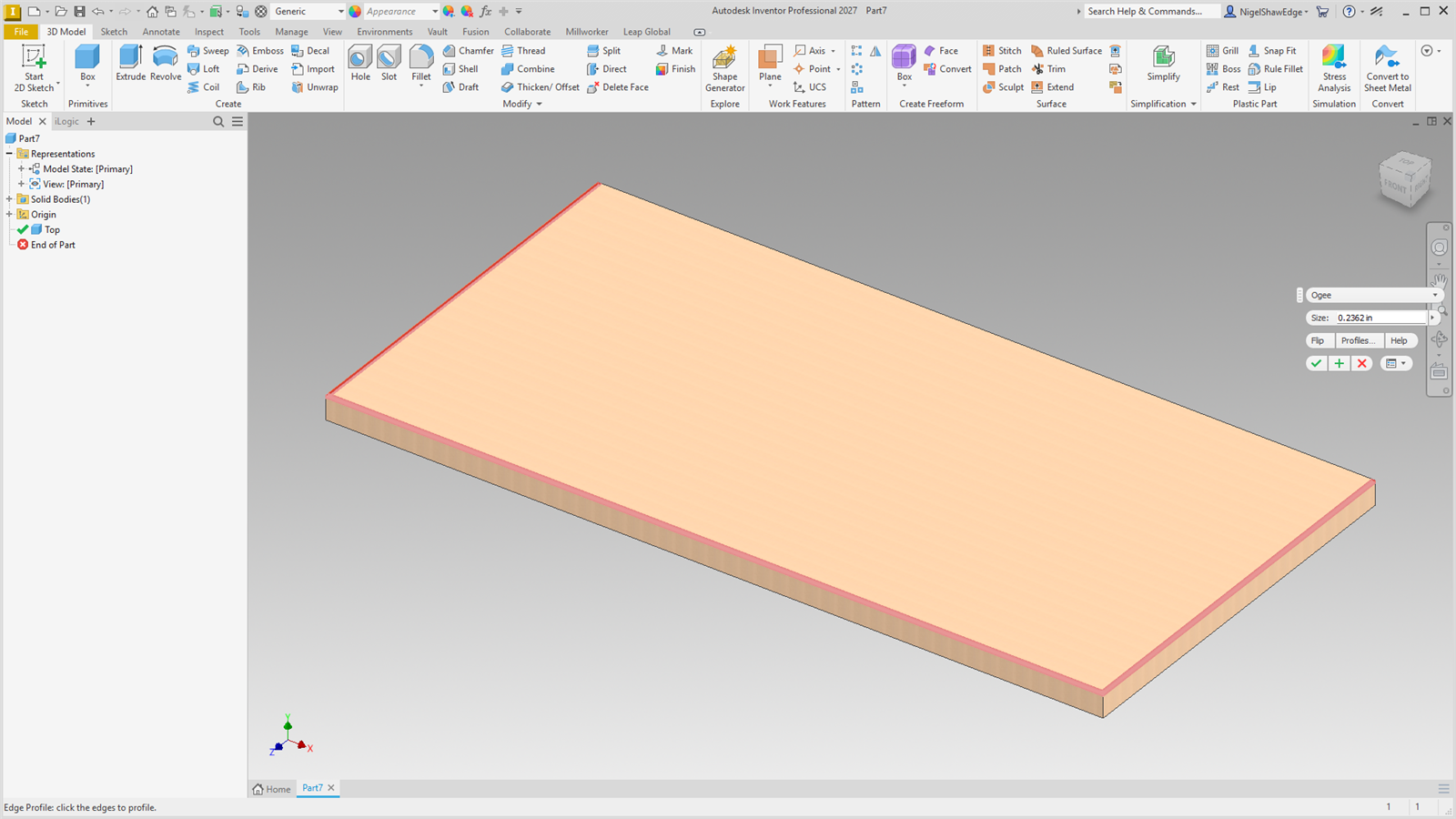
- Click edges and choose a profile. Each cut previews in red.
- Set the Size; Flip swaps which face a drawn shape starts on.
- Apply or OK.
Screenshot placeholder
images/edge-profile-preview.png
1600 × 900 px
A tabletop with its front and two end edges picked, Ogee chosen, red profile preview along the edges meeting at the corners.
Profiles
- Round-over and Chamfer are Inventor's own fillet and chamfer, Size the radius or distance.
- Cove, Ogee, Roman ogee, Bevel 30°, Rabbet, Step round-over and your own are drawn shapes swept along each edge. Size scales them. A drawn shape starts on face A, the larger face at the edge.
- Click one edge and the profile follows every edge running on from it without a corner: round a rounded corner, along the next side and round the next, until a square corner. Profiles meeting at a corner meet as a router leaves them.
- A drawn profile (Cove, Ogee, your own) starts at a straight end of the run with a square corner. An edge that goes all the way round with no corner (a round top) takes Round-over or Chamfer.
Changing a profile
Double-click an Edge Profile node. Choose another profile, its size and Flip; OK makes the node again on the same edges, keeping its name and size parameter.
The profile editor
Profiles… opens the editor, maximized. Built-in profiles are read only: Copy one to make your own, or New for an empty one. The panel's corner is at the bottom left, face A along the bottom and face B up the left; the bar at the top says what to click next.
Screenshot placeholder
images/edge-profile-editor.png
1920 × 1080 px
Profiles… editor maximized with a custom profile being drawn: points, an arc, the hatched area the router takes away, the table of U/V values on the right.
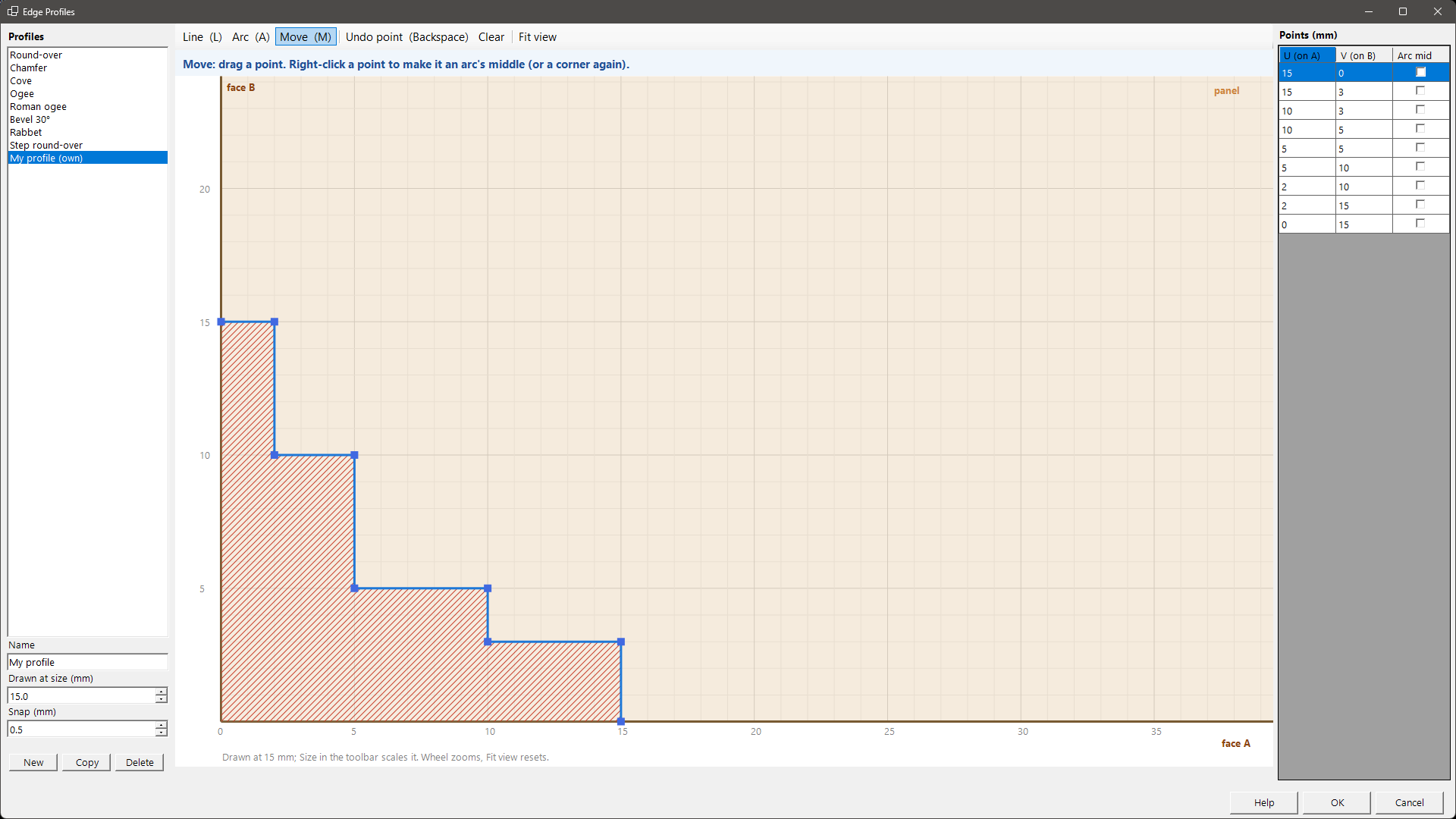
| Line (L) | Click where the profile starts on face A, then each next point. Click on face B to finish. |
| Arc (A) | Click a point the arc passes through, then its end. |
| Move (M) | Drag points (ends stay on their faces). Right-click a point to make it an arc's middle or a corner. Delete removes it. |
| Undo point | Backspace. Esc drops a half-drawn arc; Clear starts again. |
| View | The wheel zooms; Fit view resets. Points snap to the grid and onto the faces. The table on the right takes exact values. |
Your profiles are kept in Millworker Edge Profiles.json next to the material database, so every PC has them.