 Millworker
 Lattice
Turn a body into slats, or groove and flute it, with a width and spacing that follow its length.
- A part with a body to make into slats: a slatted panel, a grille, a fluted door.
- Click Lattice.
- Click a body. Choose X, Y or Z, the direction the slats are spaced along.
- Set the slat Width and Spacing (the gap). The gaps preview in red. A Spacing of 0 splits the body into its slats.
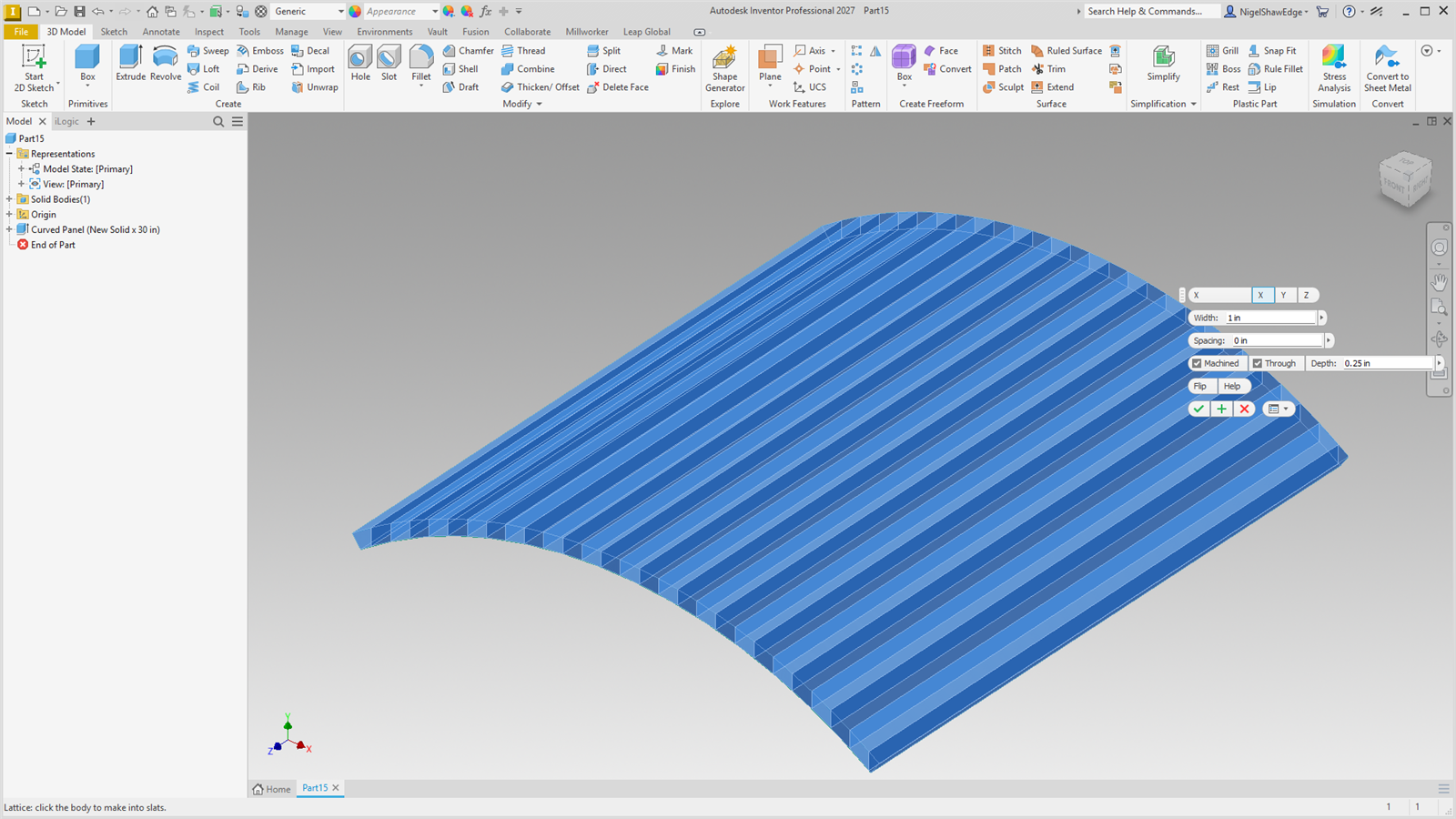
- Tick Machined to make every slat flat and square: for a curved or shaped piece cut into strips with machined edges.
- Leave Through ticked to cut right through, or untick it and give a Depth for a grooved or fluted panel (Flip cuts from the back face).
- Apply or OK.
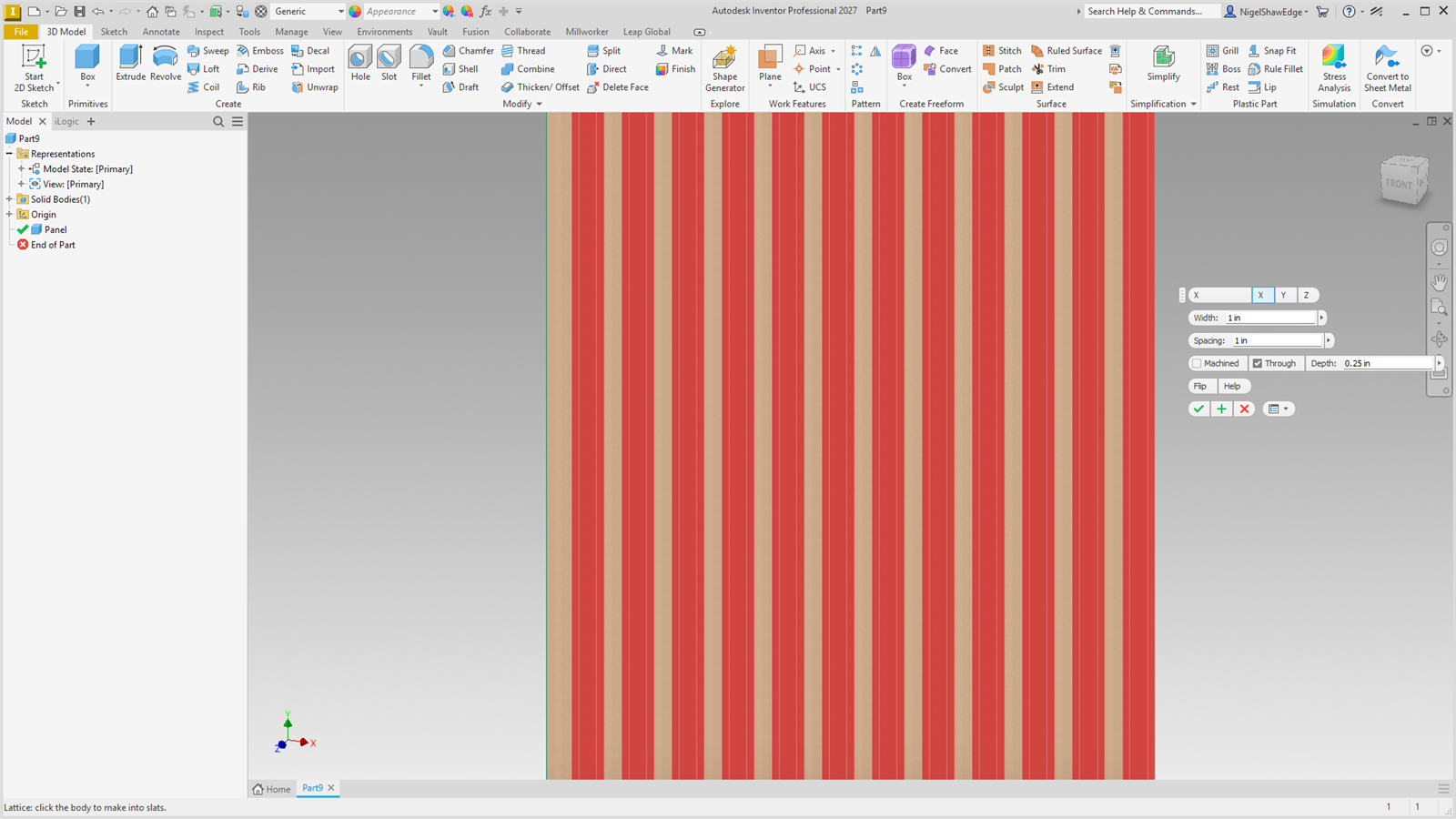
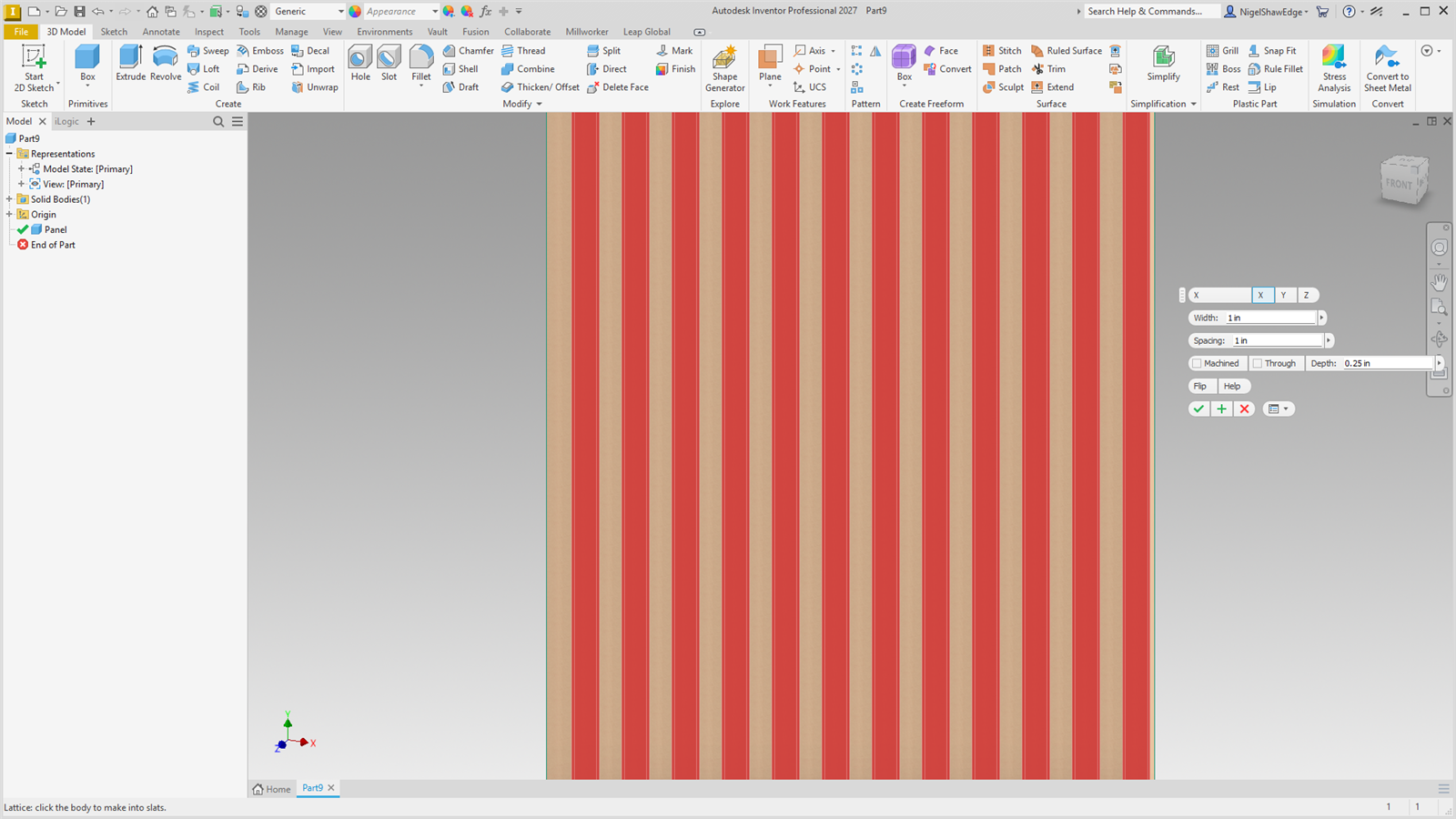
From the body's start: a slat the width, a gap the spacing, and so on, patterned as many times as fit, so changing the width, gap or the body's length changes the slats. The slats stay one body of separate pieces; Split Out makes them bodies of their own. Double-click the node to open the tool again with everything as it was, or move it to another body.
No gap, and machined slats
With a Spacing of 0 the body is split into its slats, each a body of its own (body Slat 1, Slat 2 and so on). With Machined ticked, each slat is the piece's section at the slat's middle, extruded the slat's width both ways, so every strip is flat with square, machined edges, however the piece curves; the piece itself becomes the first slat. Both count the slats when they are made, so a new width or a longer piece makes them again (double-click the node: the piece shows again while the tool is open, and Cancel puts the slats back). The planes and sketches they are built on are construction planes, out of the browser.